
Premium one-on-one email support
Every annual active license or lifetime license customer will get email priority support directly from us. You usually get our feedback within 1 hour during our working hours. Our working hours are 2AM – 5PM GMT from Monday to Friday and 7AM – 5PM GMT on weekends.
The technical support is built directly into the plugin itself. To open a support ticket, you can go to Dashboard → Settings → Meta Field Block. From this settings page, you can click on the contact menu item at the top, and choose Technical Support option and input your issue.
All submitted data will not be saved and is used solely for the purposes of your support request. You will not be added to a mailing list, solicited without your permission, nor will your site be administered after this support case is closed.
This plugin is very stable, and all PRO features work as expected, as you can see in the tutorial videos. Here’s the most common question we get from our customers:
I don’t see the Pro features for my ACF fields. Why?
MFB relies on the WordPress REST API to fetch ACF field data. Once your field name appears in the list of suggestions below the Field Name input, MFB will display it correctly.
If your ACF fields aren’t showing the Pro features, it’s usually due to one of the following reasons:
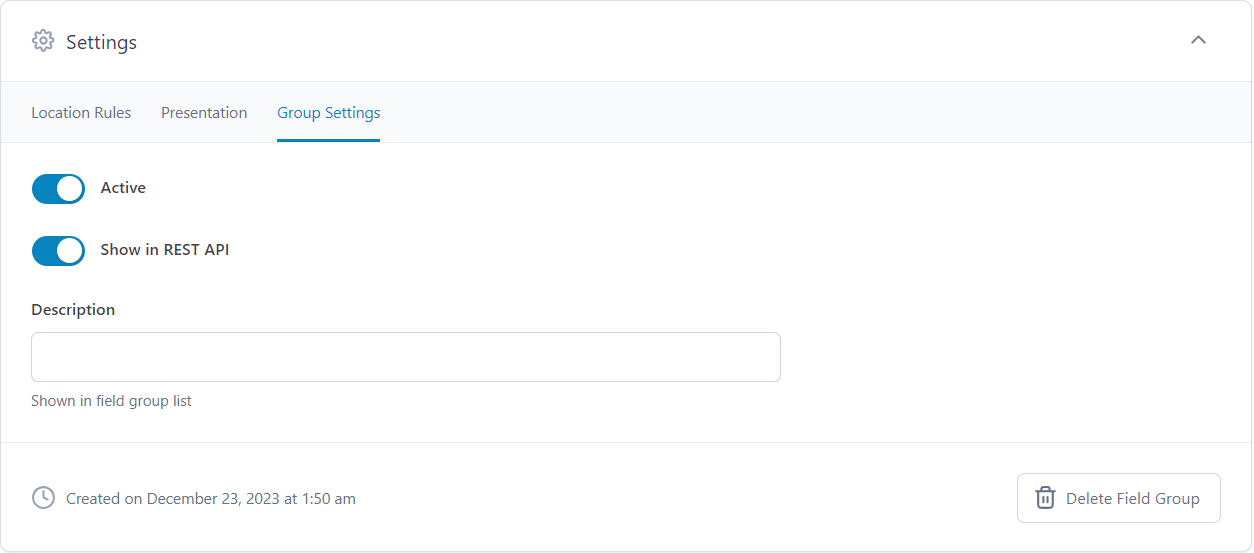
“Show in REST” is not enabled
Go to your ACF field group settings and make sure the Show in REST API option is turned on.
You just upgraded to Pro
If you recently upgraded from the free version and don’t see the Pro features yet, try re-inputting your field names.
Sometimes browser or site caching can prevent new features from appearing immediately. Try clearing your cache and reloading the page.
Using MFB in the Template Editor (FSE)
If you’re displaying fields in the Template Editor, make sure you’ve set the Meta type attribute correctly:
- For post meta fields, set it to Post meta field.
- For taxonomy meta fields, set it to Term meta field.
Then, input the ID of a sample post or term that contains data for the field. Once your field name appears in the suggestions, you’ll see all the Pro features available.
To learn more about displaying ACF fields in the Template Editor, watch this video tutorial:
👉 How to Display WordPress Custom Fields with MFB Pro
If you’re still having trouble, feel free to reach out to our support team by opening a technical support ticket. Please include details about your setup so we can help you resolve the issue quickly. You can also share an admin account if you’d like us to set it up for you.
Free support on the plugin forum
For customers who use the free version of MFB, you can create a thread in the support forum on our WordPress plugin page. We usually answer your questions within a few hours.
General requests such as pre-sale questions, feature requests, customizations, bug reports, etc.
For these requests, you can submit them via the contact form built into the MFB. You can go to Dashboard → Settings → Meta Field Block and click on the contact menu item at the top. Then, you can choose your request type from the list of options, enter your questions, and submit the data. All submitted data will not be saved and is used solely for the purposes of your support request.
Alternately, if you don’t have MFB installed on your site, you can reach us at hello@metafieldblock.com.